 Calisthenics 3
Disjointed Rollovers - Picture Gallery
This instructions page contain the following:
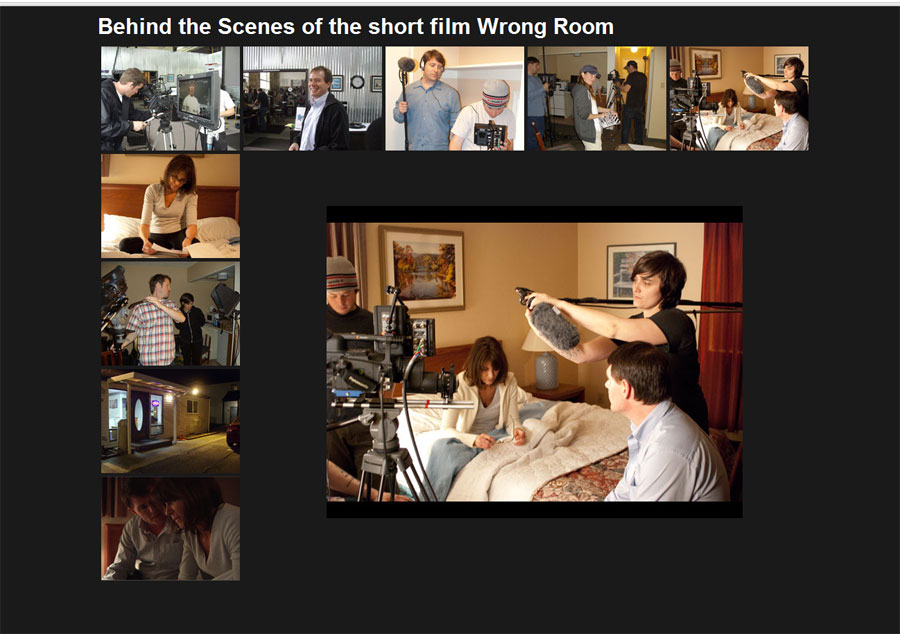
In this exercise, you will follow the steps to make a picture gallery of images using Disjointed Rollovers. When the mouse moves over the smaller, thumbnail images, the image in the main area changes to a large version of the thumbnail. This is a type of rollover behavior referred to as a disjointed rollover since the rollover is not occurring to the smaller image the mouse moves over, but rather to another image on the same page in a different location. This is commonly done on picture gallery type Web pages.
We'll be using Javascript Behaviors to perform the disjointed rollovers. Below is a finished sample of how the Web page should appear.
Part 1: Planning and Preparation
- Create a sub-folder under calisthenics called cal3.
- Create another sub-folder inside cal3 called assets. The assets folder will contain all the pictures used in this exercise.
- Open Calisthenics 3 Data Files and download the cal03images.zip file to your computer.
- Unzip or decompress the 18 images from the zip file into the cal3/assets folder. You should have 9 thumbnail images (200x150) of the larger images (600x450). In planning ahead, they have all been sized the same so they won't look awkward when the rollover occurs.
- Create a transparent image in Photoshop with a size of 600 x 450px. Give it the name "blank" and save it in the cal3/assets folder. Save the file as .gif or .png to preserve the transparency.
- The div structure of the website looks like the following sketch:
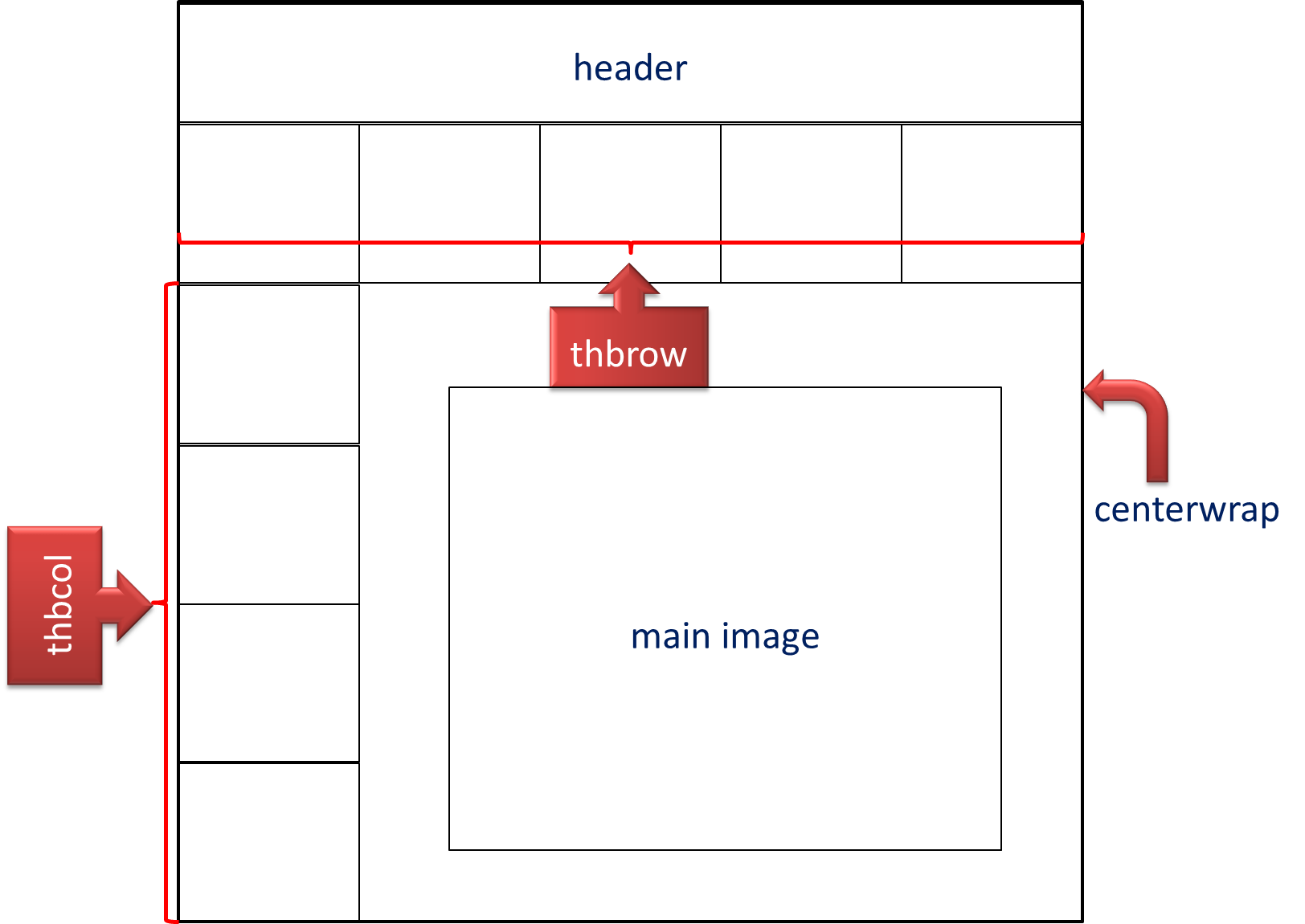
- In the sketch above, the small rectangles represent the images. There are a total of 5 divs:
- div#centerwrap (the container),
- div#header,
- div#thbrow (holds the 5 thumbnail images across the row),
- div#thbcol (holds the 4 images down the left column), and
- div#mainimage (holds the larger images that are rolled-over to -- this is also the right column).
- Based on the image dimensions you were given in Step 3 above, you can make a few calculations to determine the dimensions and other properties of the divs above:
- There are 5 thumbnail images across (horizontally). Since they are each 200px wide, then 5x200=1000. Therefore, the container, div#centerwrap is 1000px wide.
- The thumbnail images are 150px in height and there are 4 of them in div#thbcol, 4x150=600. Therefore, div#thbcol is 200x600. It also floats left to make a left column.
- The larger images are 600x450, so div#mainimage only needs to be 450px in height, however, to make it fit and look good with the 600px tall div#thbcol, it will be useful to put some padding inside it to make the 600x450 images look balanced. Top and bottom padding of 75px each. (600-450=150/2)
- There are 4 thumbnail images above div#mainimage. They are a total of 800px wide. Since the images inside div#mainimage are only 600px wide, it will be necessary to pad the left and right of div#mainimage by 100px each to make it look balanced. (800-600=200/2)
- So, when all the planning and calculations are complete, the properties of the divs are:
- #centerwrap - position: relative; margin: 0 auto; width: 1000px;
- #header - no width or height needs to be specified (the content will decide this for us)
- #thbrow - no width or height needs to be specified (the thumbnail image content will decide this for us)
- #thbcol - width: 200px; float: left; (there's no need to put a height on this one since the thumbnail images will make it 600px already -- a width and float is absolutely required to make a column, though)
- #mainimage - width: 600px; height: 450; padding: 75px 100px; float: right; (again, the width and float are required -- the height isn't really required, but it's easier to understand the padding if a height is included)
- We can put these properties away for now until we are ready to do the CSS styling in Part 4 (below).
Part 2: Structure
- Create a new HTML page in Dreamweaver and save it to your disk. Save the Web page as cal3.html
- Give the page the title "Cal 3 - Picture Gallery | Your Name " (no quotes, and Your Name is your actual name).
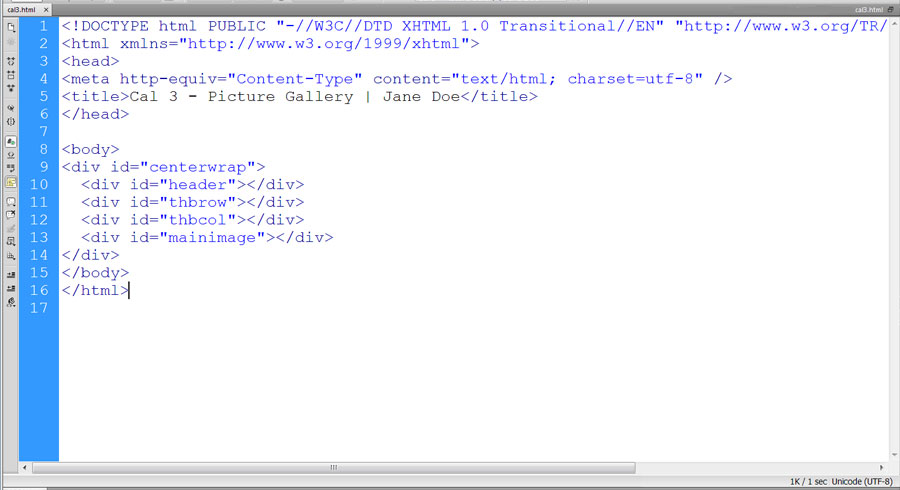
- Go straight to Code view in Dreamweaver and type in the divs and give them appropriate IDs.
- In the end, your Code should look similar to this:
Part 3: Add Content
Add content to each of the divs in the HTML as follows (because most content is images and not text, it will likely be easier to do this in Code view than in Design view):
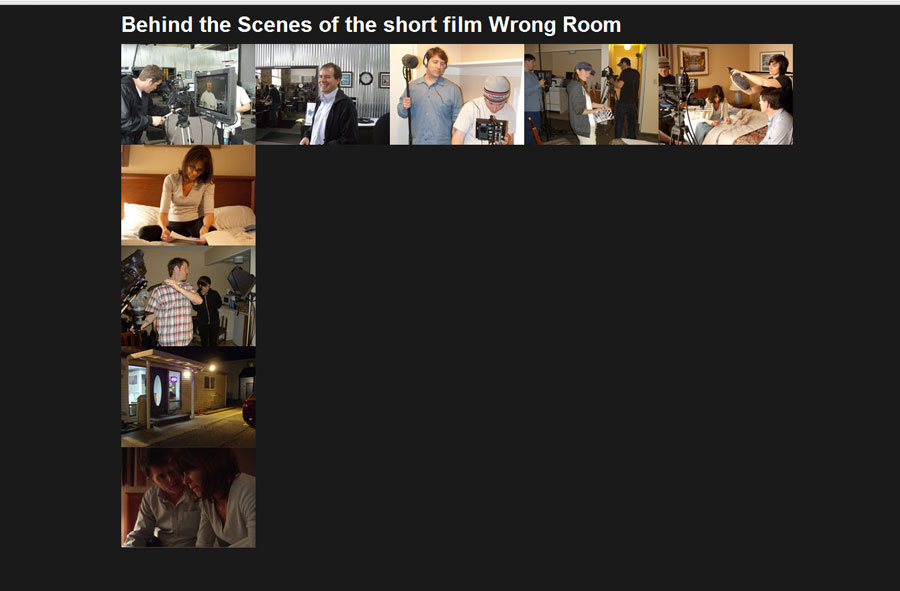
- In div#header, an h1 of "Behind the Scenes of the short film Wrong Room" (no quotes).
- In div#thbrow, insert, in ascending alphabetical order, the first 5 thumbnail images. They each begin with the letters "thb". You should give each of them alt text, but, for the purposes of this gallery exercise, you can make it brief, like "pic1" for the first image, "pic2" for the second image, and so on.
- In div#thbcol, insert the final 4 thumbnail "thb" images in ascending alphabetical order. The alt text should be there, but can be very basic (as stated above).
- In div#maincol, insert the blank image you created in Part 1, Step 4 (above).
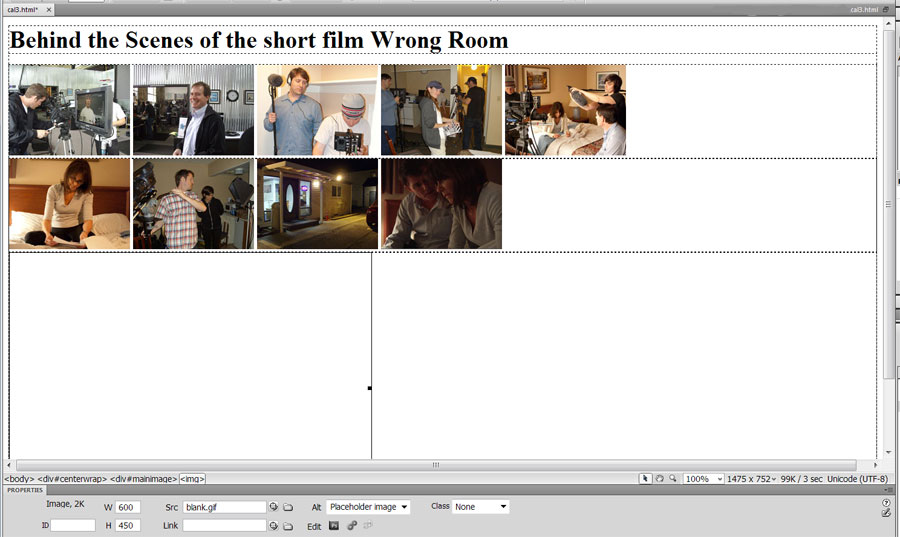
When you are finished inserting content, your Web page should look very similar to this in Design view:
Instructor Note:
Be careful that there are no spaces between the images. In looking at this, I noticed I'd inadvertently left single blank spaces between the images. This will cause your measurements in Part 4 (below) to be thrown off.
Part 4: CSS Styling
For this part, you'll use the CSS Styles Panel (All Button) to create your style for this page. You can leave the style embedded on this page since it's the only page we'll be working with on this exercise.
Create the selectors as follows (they should stay in the order they are listed here):
- Create the following tag selectors:
- an asterisk * - margin and padding of 0 for all sides. This will remove the default padding or margin on all elements (tags) thereby reducing the possible random and varying browser effects that can occur when you leave the tags with their default padding or margin.
- body - font-size: 100%; background-color: #1a1a1a;
- h1 - font-family: Arial, etc.; font-size: 2em; color: #fff; margin: 10px 0;
- Create the following ID selectors (these were listed and explained in the Part 1 planning instructions):
- #centerwrap - position: relative; margin: 0 auto; width: 1000px;
- #thbcol - width: 200px; float: left;
- #mainimage - width: 600px; height: 450; padding: 75px 100px; float: right;
After styling this page, it should look very similar to this in a browser (Chrome in this case):
Part 5: Scripting: Rollover Behavior, Disjointed Rollovers
For this part, you'll use the built-in behaviors (JavaScript) in Dreamweaver to create disjointed (disconnected) rollovers. The effect you are going for is that when the mouse hovers over each of the thumbnail images, the blank image in div#mainimage rolls over to show the larger image that corresponds to the thumbnail image.
- Prepare the thumbnail images by ID'ing all of them with appropriate one word (no spaces), lower case names. Remember: ID's should be unique to each image and should not duplicate any other ID's on the page, including ID's used with the divs. For example, a good choice for ID's on the top row from left to right would be "cameratest", "director", "boom", "assistantdirector", and "behindthescenes" (no quotes). These ID's describe the content of the images, which is helpful if you know the content. If you don't know the content, then you can make them generic, like "picture1", "picture2", "picture3", etc. (no quotes). Also, be sure not to begin with a number since that can have unintended consequences with some browsers on different operating systems.
Instructor Note:
You can put the ID in Code view (e.g., id="whatever" in the img tag of each), or you can use the ID box in the left of the Properties panel in Design view. Either choice accomplishes the same thing. - The blank image in div#mainimage should also be ID'ed. A good choice for it is "blankpicture" (no quotes).
- Open up the Tag Inspector - Behaviors panel (Shift+F4 or under Window -> Behaviors on the main menu). This will make the JavaScript behavior accessible to you.
- One after the other, click on a thumbnail image and do the following steps:
- Click the plus sign, then choose Swap Image from the Behaviors pull-down menu
- Select the image ID that corresponds with the blank image in div#mainimage
- Browse... and Set source to the larger version of the thumbnail image you selected
- Leave Preload images checked
- Uncheck Restore image onMouseOut
- Repeat these bulleted steps for all other thumbnails
- Test this in a browser and you should see the disjointed rollover effect work on all images.
- The thumbnail images look a bit smooshed. They appear to need margin to separate them. By doing this, you'll throw off the width of the container, so be prepared to increase it's width to adjust to the change.
- Add an img tag selector (put it under the h1 tag selector in the CSS Styles panel) and give it margin: 0 0 5px 5px;
- Change the width of #centerwrap to 1025px (1000px + 5 images across x 5px left)
- Check this in a browser. It should look like the image at the top of these instructions.
Part 6: Saving and Uploading
- Save your cal03.html Web page.
- Upload cal3 folder to the SWS, which should include cal03.html and all the pictures inside the assets subfolder.
- Test this on the SWS with one or more browsers to make sure it functions properly.
- Mail your instructor using a subject like CAS 111d Calisthenics 3 Your Name
Instructor Note:
As you should be in the habit of doing, be sure to use a browser (or more than one browser) to check your Web pages on the SWS to ensure everything works properly.